Auto-translated from Spanish
Have you ever wondered which is the best theme or topic for your YouTube videos? Today, I’ll show you how to identify which one performs better. This can be an important insight to help you focus more on those topics, leading to more views, subscribers, and, overall, a thriving YouTube channel.
Playlists are the key
If you’ve been on YouTube for a while, you’ll know that playlists are really useful for grouping videos on the same or a similar theme.
The key thing here, so you can figure out which theme works best for your channel, is actually creating playlists that bucket your videos.
Here’s an example from my gaming YouTube channel — on this channel I tend to upload videos of different games, a practice I wouldn’t necessarily recommend, if you ask me. Since I’ve got different games on the channel, I group them into separate playlists for each one.
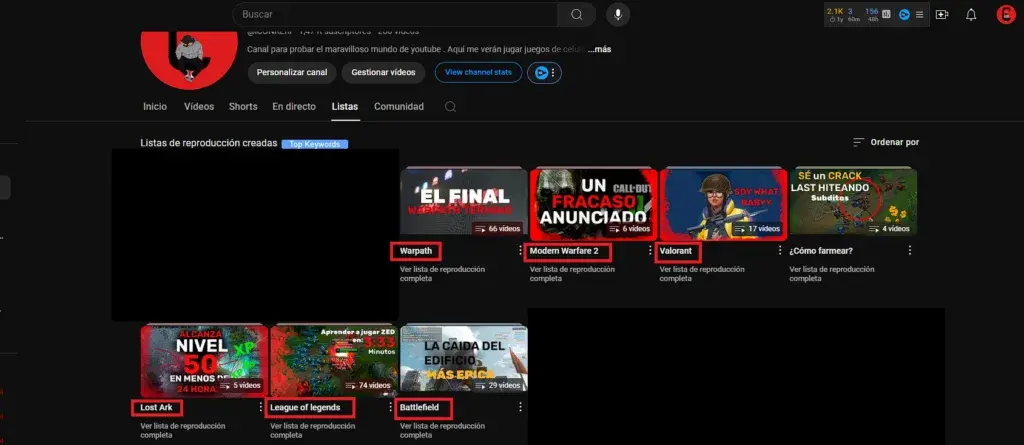
You can see in the screenshot that the playlist names corresponding to each game are underlined in red. These playlists contain videos focused on that specific theme.
Create playlists
It’s important that you create playlists. To do this, just follow these steps:
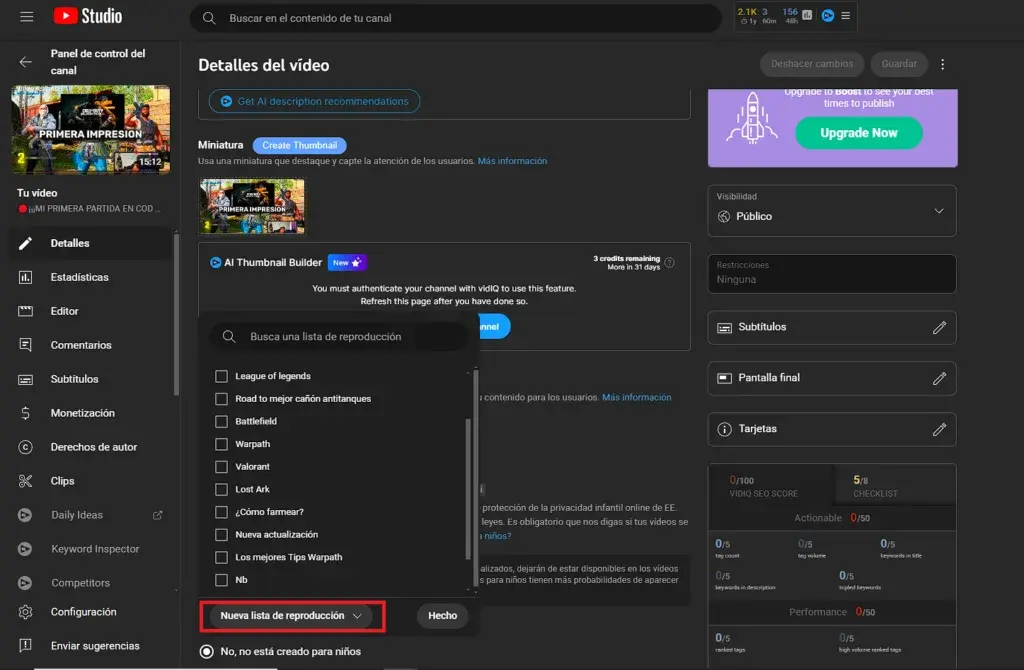
- Go to the analytics of any video using YouTube Studio.
- Once there, scroll down to the “Playlists” section.
- At the bottom, you can create one by clicking “New playlist.”
With that playlist created, you can go into each video with the same theme and select the playlist you made.
Discover your most important theme
Once you have all your videos in a playlist — or at least the most important ones for you (you can use views and watch time as a reference) — you’ll be able to see the analytics that tell you which is your flagship theme. Follow these steps to set it up:
- Go to any video like we did in the first step above, and select “Analytics” on the left.
- Once there, select “Advanced mode” in the upper right corner.
- Where the video title shows up (top section), select your channel’s logo and name. This will let us see the overall performance of the channel.
- For a better stats history, change the evaluated time period to “All time.” This option is in the top right — dates will appear based on when you’re checking.
- As a final step, right below this date setting (All time), you’ll find a tab that says “Playlists.”
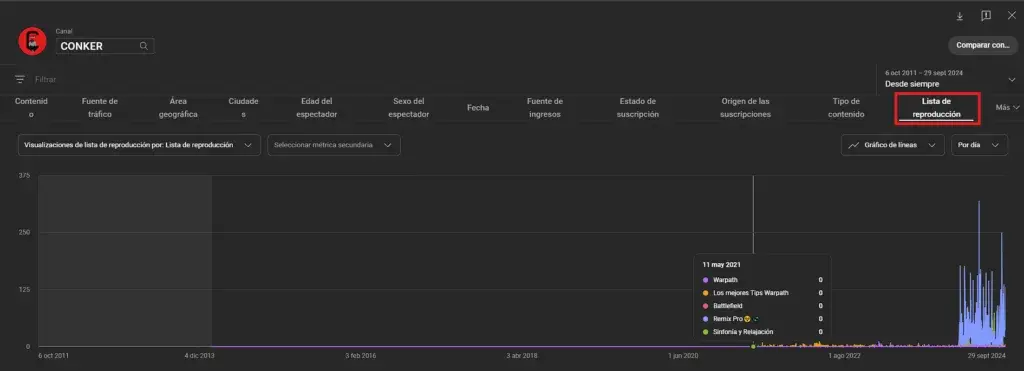
And that’s it! Now you’ll be able to see specifically how the playlists have performed on your channel. A few general tips:
- If your channel’s been around a long time, or you created it a while back and haven’t uploaded videos, change the start date to whatever makes sense for you.
- You can view each theme individually just by clicking the checkbox to the left of the playlist name.
- You’ll be able to spot spikes in views, watch time, and more across the whole time period.
- Identify the theme that performs best on the metrics that matter and plan to improve that content or create new videos focused on those spikes.
Knowledge is power
Knowing your channel’s most relevant themes lets you decide what to talk about in your upcoming videos. Want an example? Here’s one: while reviewing this graph, I noticed that searches for the game “League of Legends” spike around “November and December.” I now factor those times of year into my plans to upload more videos on that theme.
There are plenty more applications, but for now you’ve got one that’ll keep you busy for a good while. Good luck, and here’s to your channel growing!