Auto-translated from Spanish
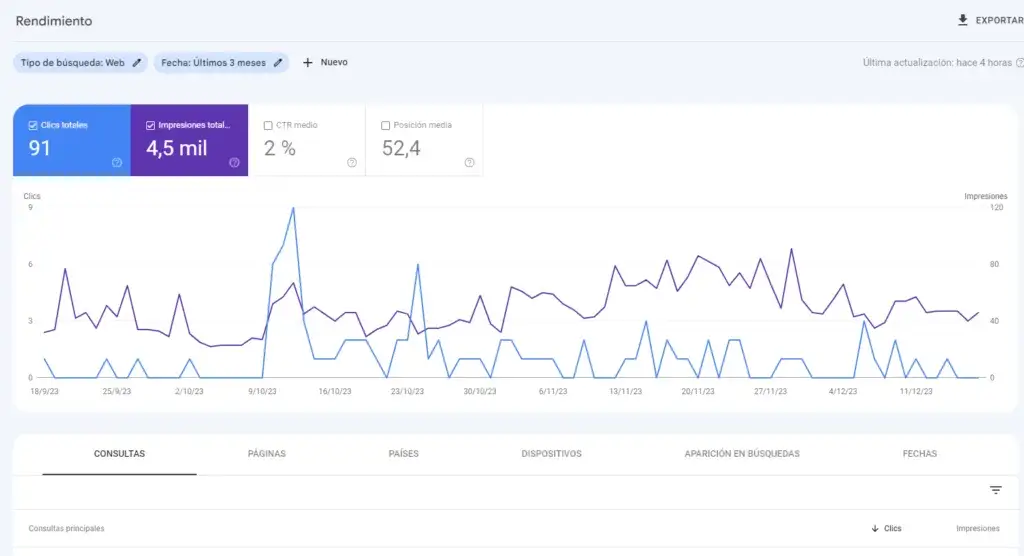
You’ve probably run into this before: while browsing Google Search Console, specifically the “Performance” tab, you see a huge number of keywords currently bringing traffic to your site. But the moment you try to actually see them all, you hit a wall — a limit of 1,000 keywords. Pretty annoying, right? Today I’ll show you how to get ALL of these keywords with no limits, no coding required, and using just one essential, free tool. And if you’re still deciding which keywords to target, start with this keyword research guide.
Step 1: Have Google Search Console set up
The first step, and one of the most important, is actually having Google Search Console. I won’t go too deep into this step since if you’re reading this blog, you probably already have it set up. If you don’t, here are some quick steps to get it running easily, fast, and for free on WordPress:
- Go to Google Search Console and click “Start now.” It’ll ask for a few simple details tied to a Gmail address.
- Once you’ve filled those in, the next step is to verify ownership of your website. Here you’ll see two options: verify by domain or verify by URL prefix. I’d recommend using URL prefix and entering your site’s domain URL, e.g., www.eljoseoweb.com.
- Once that’s done, there’s one slightly more random step: go to WordPress and install Google’s plugin, called Site Kit by Google. From there, just follow the prompts and keep clicking next. Important: make sure you do this with the same Gmail account you used to create your Google Search Console.
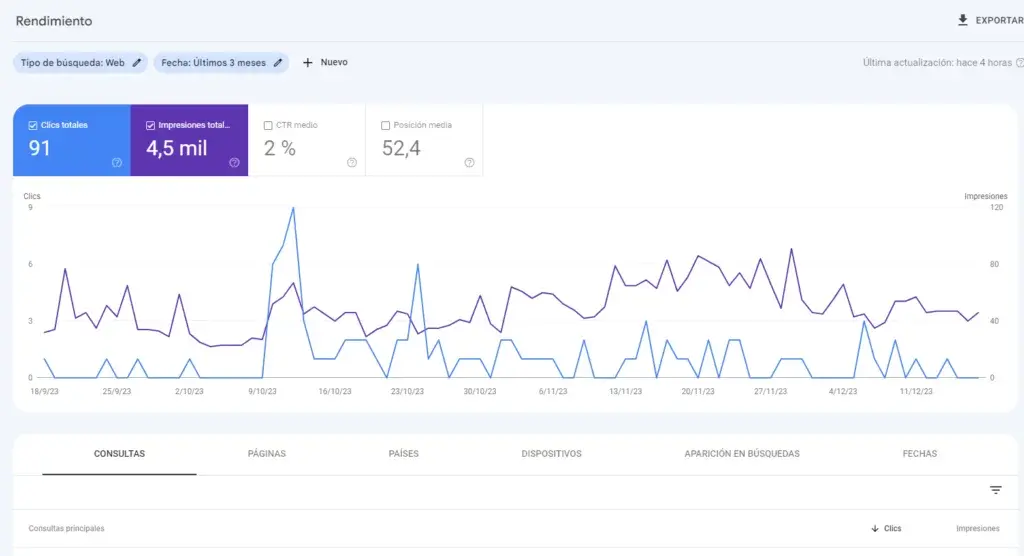
- Almost there! With that done, you’ll be able to check the “Performance” tab on the left side of the screen and see all the data shown in the earlier screenshot.
- And with that, you’re all set up to move on to Step 2.
Step 2: Get a Looker Studio account
I know, I know — it feels like there are a ton of tools you need just to do this, right? But don’t worry, this next tool will let you do everything I promised above, quickly and pretty intuitively, plus a lot more.
Head to Looker Studio using the same Gmail account you set up a couple steps ago. Skip past the onboarding screens and you’ll land on an interface full of options for creating reports, sharing them, using templates, and more.
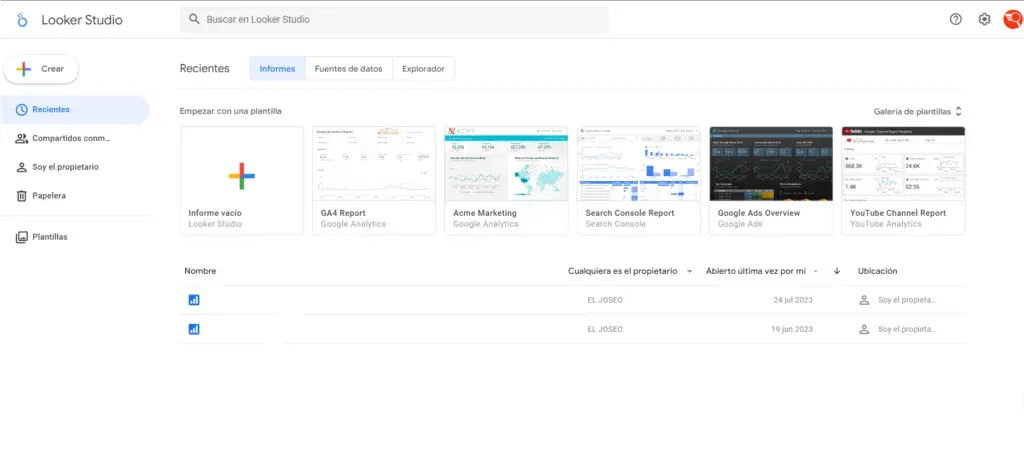
Next, click “Create” in the top-left corner of the screen to build your first report.
Good to know: Looker Studio is a Google tool for building reports across different analytics tools, and you can even combine several of them, so it’s genuinely worth learning if you work with data at all.
Once you click create report, a window will pop up with a bunch of tools you can connect and build reports from. What we care about here is typing “Search Console” into the Search box, authorizing it with your Gmail account, clicking your domain, and then selecting URL Impressions — Web. With that, you’re one step away from having every keyword with no limits.
Step 3: Final setup in Looker Studio
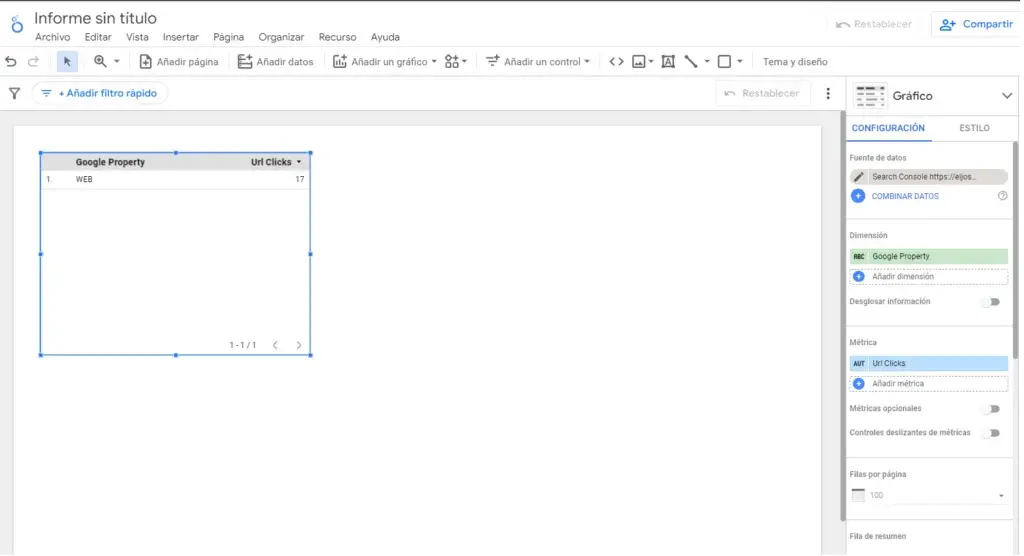
For this step, we need to build a table that shows every keyword for our domain — with no limits and shown instantly.
To do this, click on Google Property inside the “Dimension” box and search for the option labeled “Query.” Once you select it, you’ll see every keyword for a given time period pop up, and you can adjust that period however you like.
I’d also recommend going into the “Metrics” box, clicking “add metric,” and adding other measurements like impressions, CTR, and average position — that way you get a fuller picture of your performance, which makes it easier to run better analysis and act on it when needed.
And that’s it — there you have it, your full performance data with no limits.
Exporting all your keywords to Excel
If for whatever reason you want to export all these keywords to Excel, just hover your mouse over the table you created, click the three vertical dots, then click export, and you’re done.
Conclusion
As you can see, it’s really easy to get access to every one of your keywords along with their key metrics, no code required. This method is especially useful for larger websites with more than 1,000 keywords being tracked by Google, though it works just as well for smaller sites if you want to run specific reports and analysis.
Hope you enjoyed this little article — until the next SEO shot in the arm.