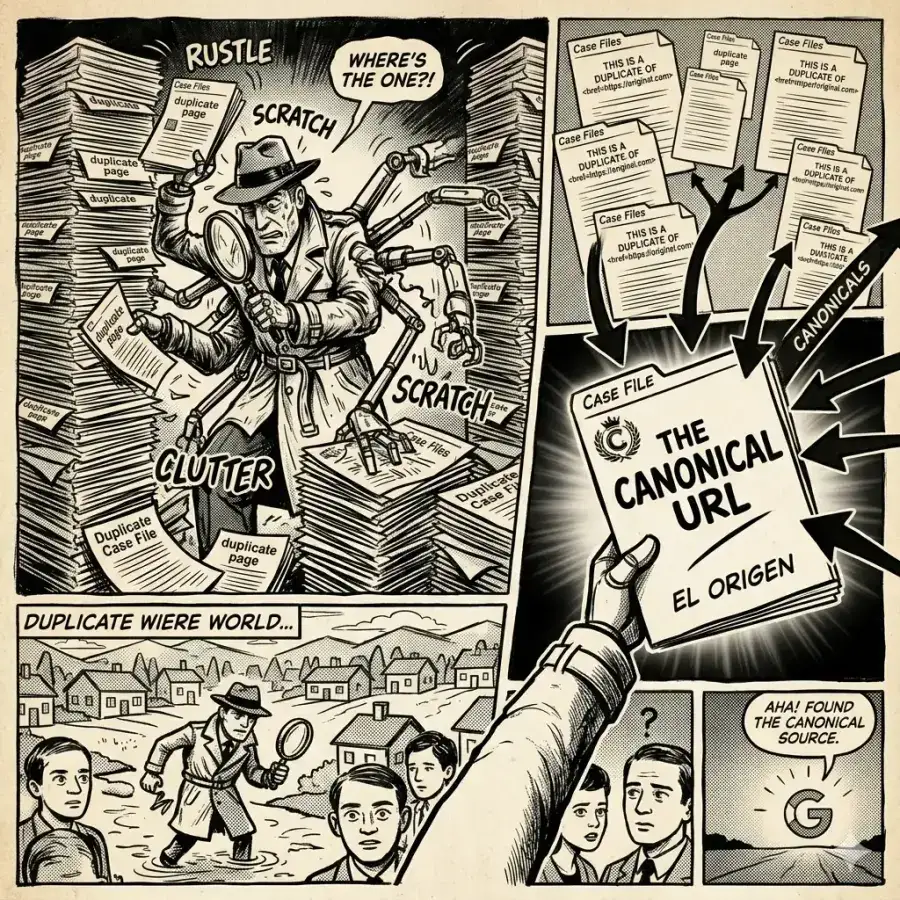
A canonical tag (rel="canonical") is a small piece of HTML placed in the head section of a web page that tells search engines which URL is the main, preferred version of that page. When you have duplicate or similar content living on multiple URLs, it helps Google consolidate all of them into one canonical URL, so that’s the version that shows up in the search results and collects the ranking signals.
That’s the short answer. Now let me show you how it actually works, how to add it on your site in a few minutes, and the mistakes I see all the time when I audit websites.
What Is a Canonical Tag?
Canonical tags are a mechanism you can use to avoid potential duplication issues and, at the same time, prioritize one URL within a set of similar URLs. I know, that can sound a little confusing, so let’s look at what the tag itself looks like:
<link rel="canonical" href="https://www.example.com/main-article/" />That’s the whole thing. The canonical link element has two parts:
rel="canonical": the attribute that tells browsers and search engines “this is a canonical link”.href: the URL you want Google to treat as the canonical or preferred version.
The rel="canonical" link relation isn’t something Google made up on the fly: Google, Yahoo and Microsoft announced support for it together back in 2009, and it’s formally described in RFC 6596, the standard that defines it.
How does it work?
When Google finds several similar pages, it groups them and picks one of them as the canonical. That’s the URL it will crawl most often, the one it’ll show in Google Search, and the one that gets credit for the links pointing to the whole group. The rest are treated as duplicates.
The canonical tag is your vote in that decision. You’re specifying which URL you’d prefer Google to pick, instead of letting it guess.
Why Does Canonicalization Matter for Duplicate Pages?
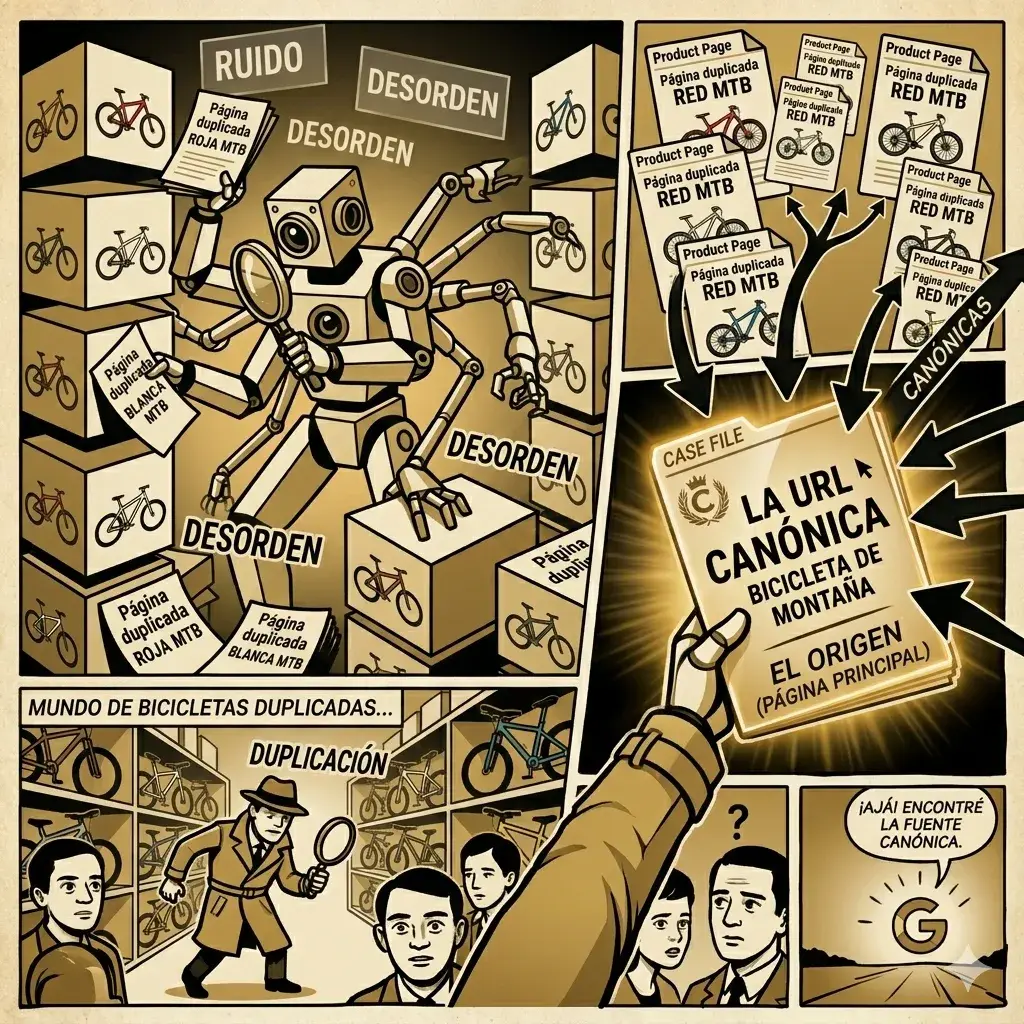
Here’s the example I always use. Let’s say you have a website that sells bikes of every type — road bikes, basic bikes, and mountain bikes. The funny thing is that each type of bike comes in different color variants, so, for example, you’d have red, white, black, and other colored mountain bikes.
You quickly realize you have the same bike in different colors, but with identical or near-identical content. And every color has its own URL.
Let me clear up a myth first: Google doesn’t hand out a “duplicate content penalty” for this. Duplicate content is normal on the web and Google knows it. The real problem is what happens when you don’t tell it which one matters:
- Split ranking signals: the links and popularity that should strengthen one page end up scattered across multiple URLs.
- The wrong URL in the search results: Google might show the white bike page when the one that sells the most is the red one.
- Wasted crawling: Google spends time crawling copies instead of your new or updated content. On a 20-page site this barely matters; on a store with thousands of product page variations, it really does.
- Pages competing against each other: several duplicate pages fighting for the same keyword instead of one strong page.
That’s exactly where the canonical tag comes into play: you let Google know you’re aware there’s a group of similar URLs, but you only want it to focus on one in particular — the most important one to you.
Where duplicate URLs come from
Most of the time you didn’t create the duplicates on purpose. Your CMS, your tracking tools or your server did it for you:
| Source of the duplicate | Example URL |
|---|---|
| HTTP and HTTPS versions | http://example.com/bikes/ vs https://example.com/bikes/ |
| With and without www | https://www.example.com/bikes/ vs https://example.com/bikes/ |
| Trailing slash | /bikes vs /bikes/ |
| Tracking parameters | /bikes/?utm_source=newsletter |
| Filters and sorting | /bikes/?sort=price&color=red |
| Product variants | /mountain-bike-red/, /mountain-bike-white/ |
| Content syndicated on another site | Your article republished on a partner’s blog |
To you, all of those are “the same page”. To a search engine, each one is a different URL.
How to Choose Your Canonical URL
How do you know which one is the most important? In that case, you’ll need to look at business metrics — which specific bike brings you more visits or revenue — so you can figure out which one in that group is worth focusing on.
A few rules to identify the preferred URL:
- Pick the one that gets the most traffic, links or sales.
- Pick the clean version: no parameters, HTTPS, and the same format (www or not, trailing slash or not) as the rest of your site.
- Pick a URL that returns a 200 status code: never a 404, and never a URL that gets redirected.
Once you’ve identified the most relevant URL, it’s time to implement the tag on your website.
How to Add a Canonical Tag to Your Website
Nowadays you can add and change this tag pretty quickly. Here are the three ways to do it, from easiest to most technical:
Option 1: Using Plugins / Extensions / Add-ons
- Go to the URL you previously selected as the most relevant one.
- Once there, click “Edit” on the page.
- In the top-left corner, you’ll see an SEO option.
- Check the settings inside that tab and find the option to change the canonical.
- You’ll see a field where you should enter that same URL.
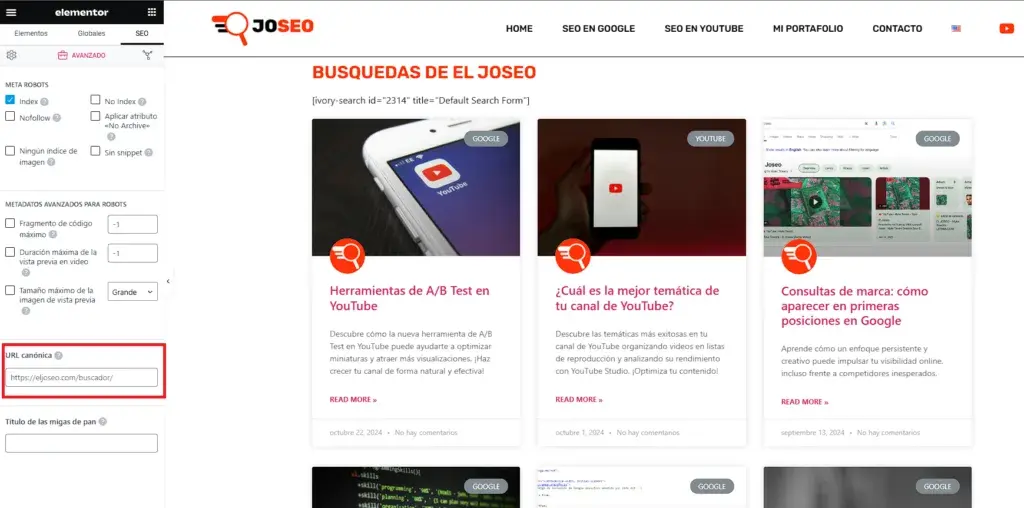
Keep in mind I just showed you how to set this tag up in WordPress — but you can search Google for a plugin or extension for your specific CMS that lets you edit canonicals however you like. Most modern platforms (Shopify, Wix, Webflow) already add a self-referential canonical automatically.
Option 2: Pure HTML Code
If you feel like you have some basic HTML knowledge, here’s the other way to do it. All you need is access to edit the HTML of the page in question (the most relevant one and its similar counterparts).
Let’s keep going with the bike shop example. Go to the most relevant URL, open the HTML editing options, and insert this code inside the <head> tag:
<head>
  <link rel="canonical" href="https://www.example.com/mountain-bike/" />
</head>
When adding this tag, all you have to do is replace the URL between the quotation marks in the “href” attribute. Note: just like I explained earlier, the option to edit HTML depends on the CMS you’re using, so I’d recommend searching Google for how to do it in your particular case.
Keep in mind there should NEVER be more than one canonical tag per URL, so before implementing this tag in your HTML code, check whether one is already active in the source code.
Option 3: The Canonical HTTP Header (for PDFs and Non-HTML Files)
What happens when the duplicate is a PDF? A PDF doesn’t have a <head> section, so you can’t paste a tag inside it.
For those cases there’s the canonical HTTP header: the server sends the canonical in the response headers of the file instead of inside the HTML. A rel canonical header looks like this:
Link: <https://www.example.com/downloads/bike-guide/>; rel="canonical"Let’s say you publish a bike buying guide both as a web page and as a downloadable PDF. With this header on the PDF, you tell Google the web page is the main version. This one is set up on the server (or with your hosting’s header settings), so if you’re not the technical type, ask your developer.
Point Your Duplicate Pages to the Canonical URL
Once you’ve set this canonical, you’re telling Google that’s your most important URL… but what about the other URLs with similar content? What you need to do next is go to each of the duplicate URLs and set their canonical pointing to the main URL you selected.
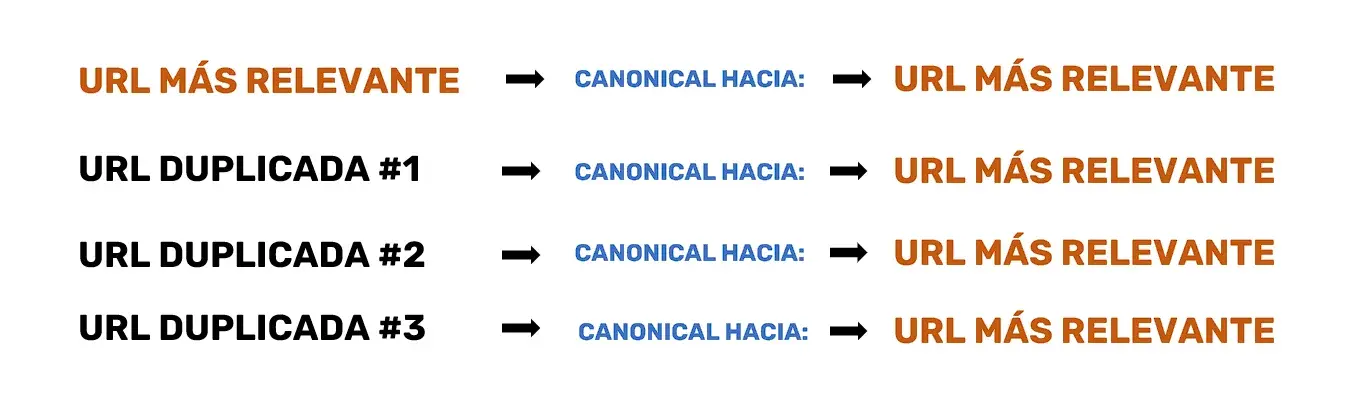
So in the bike shop:
| URL | Its canonical tag points to |
|---|---|
/mountain-bike/ (the main one) | /mountain-bike/ (itself) |
/mountain-bike-red/ | /mountain-bike/ |
/mountain-bike-white/ | /mountain-bike/ |
/mountain-bike/?utm_source=instagram | /mountain-bike/ |
Notice the first row: the main page points to itself. That’s called a self-referential canonical, and it protects you from all the parameter versions that get created without you noticing.
Comparison of Canonicalization Methods
The canonical tag isn’t the only way to tell Google your preference. Google lists several canonicalization methods, and they don’t all weigh the same:
| Method | How strong a signal it is | When to use it |
|---|---|---|
| 301 redirect | Strong | The duplicate URL shouldn’t exist anymore for users |
| rel=“canonical” tag | Strong | The duplicates need to stay accessible (colors, filters, tracking) |
| Canonical HTTP header | Strong | Non-HTML files like PDFs |
| Including the URL in your sitemap | Weak | Always, as backup: list only canonical URLs |
My advice: combine them so they all point the same way. The canonical tag on the page, the same URL in your XML sitemap, and your internal links pointing to that same URL. When everything agrees, Google almost always respects your choice.
How Google Treats Rel Canonical: A Signal, Not a Command
This is the part most people don’t know: rel="canonical" is a strong hint, not a directive. Google can ignore it and choose a different URL if other signals contradict you.
These are the ranking signals Google weighs alongside your tag:
- Redirects: if a URL redirects somewhere, that destination gets priority.
- Internal links: the URL your menus and articles link to.
- Your sitemap: the URLs you list there.
- HTTPS over HTTP: Google prefers the secure version as canonical.
- Hreflang annotations: the URLs you use in your language versions.
If your page canonical points to URL A, but all your internal links and your sitemap point to URL B, those are conflicting signals, and Google will probably pick B. The fix isn’t to “force” the tag harder: it’s to make every signal point to the same single preferred URL.
Canonical tags and hreflang annotations
If your site has several languages (like this one, in Spanish and English), there’s a rule that breaks many sites: each language version must be canonical to itself, never to the other language. The English page shouldn’t have a canonical pointing to the Spanish one, because you’d be telling Google “ignore the English version”. The connection between languages is done with hreflang, not with canonicals.
Canonical Tag vs 301 Redirect: Which One Should You Use?
| Canonical tag | 301 redirect | |
|---|---|---|
| Can users still visit the duplicate? | Yes | No, they’re sent to the new URL |
| What happens to the signals | Consolidated into the canonical | Transferred to the new URL |
| Ideal for | Color variants, filters, tracking parameters | Moved pages, merged content, old URLs |
A simple way to remember it: if the duplicate page is useful for a user, use a canonical. If it shouldn’t exist anymore, use a 301. And if a page is already gone without a redirect, you’ll end up with a 404 error instead.
Canonical Tag Best Practices
To avoid canonical issues and make sure Google respects your preferred URLs, follow these best practices:
- Add a self-referential canonical to every indexable page. This very site does it automatically on every URL.
- Use absolute URLs. Write
https://www.example.com/page/, not/page/. Relative URLs work, but they’re much easier to break. - Point only to pages that return 200. Never canonicalize to a 404, to a redirected URL, or to a page with
noindex. - Only one canonical per page. If a plugin and your theme each add their own, Google may ignore both.
- Keep it in the
<head>section. A canonical placed in the<body>is ignored. And don’t let JavaScript change it after the page loads. - Avoid mixed signals and chains. Don’t canonicalize A to B while B points to C, or back to A.
- Canonicalize to the HTTPS version, never to HTTP.
- Don’t use it on pages that aren’t duplicates. Page 2 of your blog isn’t a copy of page 1, so it shouldn’t canonicalize to page 1.
- Don’t use the robots.txt file to handle duplicates. If Google can’t crawl a page, it can’t see its canonical tag either. The same goes for
noindex: it’s not the tool to choose a canonical. - Cross-domain canonicals are allowed. If you republish your article on another site, ask them to add a canonical pointing to your original.
How to Check Your Canonical Tags
Setting it up is half the job. Checking that Google actually understood you is the other half:
- Look at the source code: press
Ctrl + Uon the page and search (Ctrl + F) forcanonical. You’ll see the URL it points to. - Use an SEO extension: it shows you the canonical of any page in one click (I leave you mine in the final tip).
- Run a free audit: my free SEO audit tool checks whether a page has a canonical tag, along with its meta title, meta description, H tags and more.
- Search Console’s URL Inspection tool: paste the URL and compare the “User-declared canonical” with the “Google-selected canonical”. If they’re different, Google didn’t agree with you.
In Search Console’s Page indexing report you’ll also see these statuses, which are the most common canonical issues:
| Status in Search Console | What it means |
|---|---|
| Alternate page with proper canonical tag | All good: it’s a duplicate pointing to its canonical |
| Duplicate without user-selected canonical | Google found duplicates and you didn’t tell it which one is the main one |
| Duplicate, Google chose different canonical than user | You declared a canonical, but your other signals convinced Google otherwise |
If a page you care about doesn’t appear on Google at all, the canonical is one of the first things I check (along with the others I explain in why isn’t my site on Google).
VIDEO: WHAT ARE CANONICAL TAGS
Frequently Asked Questions About Canonical Tags
Can you give me an example of a canonical URL?
Yes. If your product page is available at both https://example.com/bikes/?color=red and https://example.com/bikes/, the canonical tag on the color version should point to https://example.com/bikes/. That’s the canonical URL: the main version you want Google to index and show.
What is a canonical issue in SEO?
A canonical issue happens when search engines find identical or very similar content on multiple URLs without clear instructions about which one is the main one, or with contradictory instructions. The result is that Google picks the URL on its own, which may not be the one you wanted.
Should I use a 301 redirect or a canonical tag?
Use a 301 when the old URL shouldn’t exist anymore and you want to send users and search engines to the new one. Use a canonical tag when the duplicate pages need to stay accessible to users, like color variants, filters or links with tracking parameters.
Does every page need a canonical tag?
It’s not mandatory, but it’s a best practice: a self-referential canonical on every indexable page protects you from duplicate versions created by parameters you don’t control. Most SEO plugins and modern platforms add it automatically.
Can Google ignore my canonical tag?
Yes. Google treats rel=“canonical” as a strong signal, not a command. If your redirects, internal links or sitemap point to a different URL, Google may choose that one instead. Check it in Search Console’s URL Inspection tool.
Will Google penalize my site for duplicate content?
Not for normal duplicate content, like product variants or URL parameters. Google simply picks one version and filters out the rest. The penalty risk only exists when content is copied to deceive or manipulate rankings. The real cost of unmanaged duplicates is split signals and the wrong URL ranking.
Final Tip
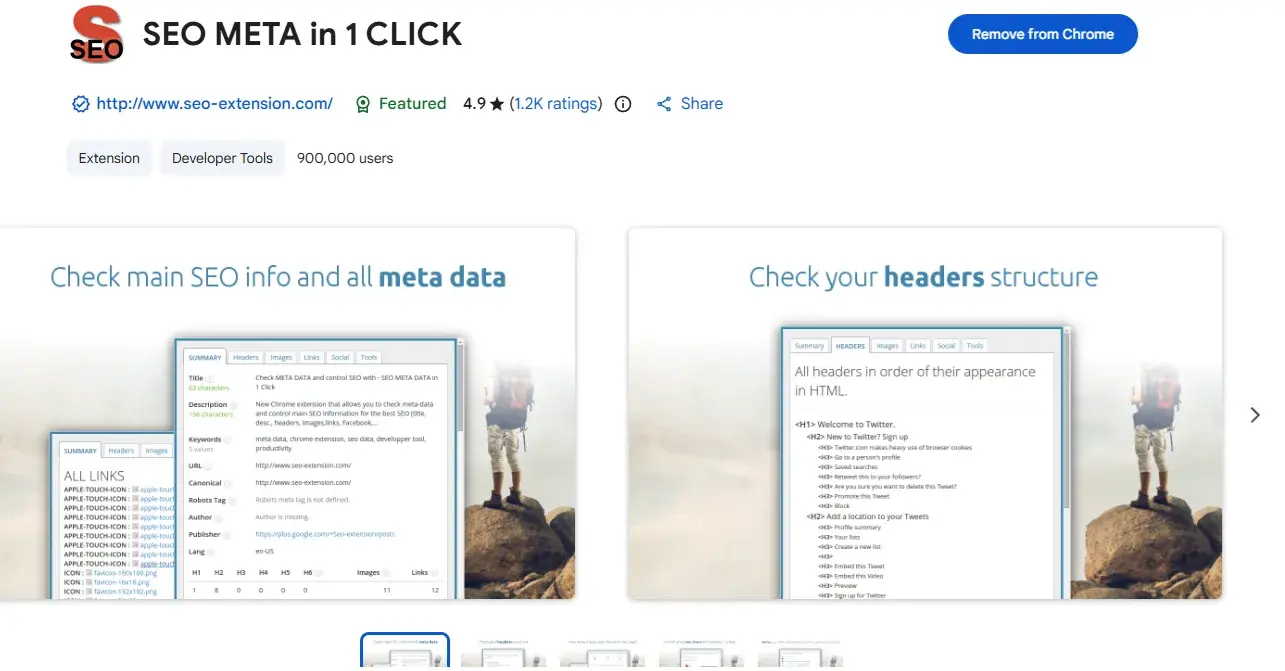
Check which canonical a specific URL has with this extension.
Download The Best SEO Extension
Download another SEO extension for your browser — not quite as good as the first one:
For the official technical details, Google’s documentation on canonical URLs is the reference I trust most. And if you want to keep learning, you’ll find more guides like this one in the SEO for Google blog — remember that we’ll cover EVERYTHING we talked about above in the SEO COURSE.
If your site has hundreds or thousands of URLs (an online store, a site with filters, several languages) and you’re not sure which canonical Google is actually choosing, that’s exactly the kind of problem I solve for businesses. Book a free SEO consultation with me and we’ll review it together.